
Therapy Companion · Workflow guide
Find unfinished practice work in the Action Center
Therapy Companion’s Action Center derives work from supported practice records and events, including session preparation, notes, requests, draft claims, and other follow-up signals. Items link to the underlying work. It is not a general-purpose project manager or a promise that every possible administrative task is tracked.
Before you start
Clinicians and practice owners who want to see supported outstanding work without reconstructing it from separate screens.
- An account with the role, assignments, and record access needed for the work.
- Underlying appointments, notes, requests, and other supported records that produce the signals.
- Agreement on who handles clinical, supervisory, and operational responsibilities.
The workflow, step by step
Review the priority bands
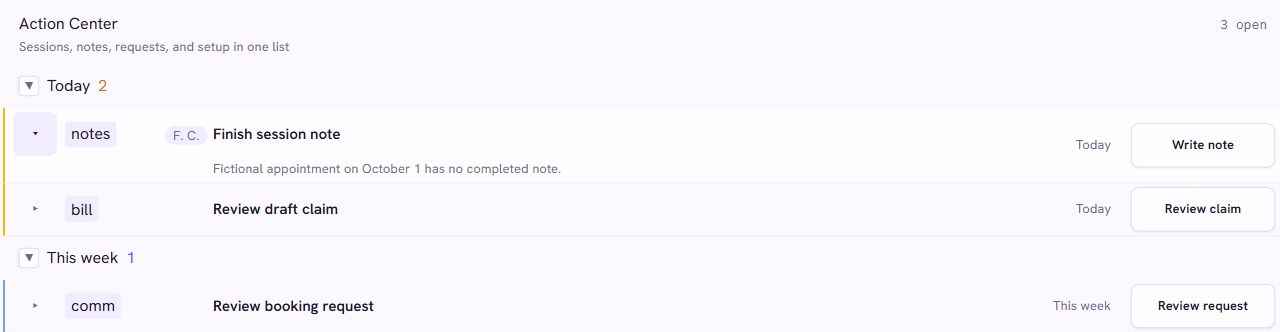
Open the Action Center on the clinician dashboard. Work is grouped into Now, Today, This week, and Later. Expand the relevant band to inspect its items instead of treating the open count as the whole story.
Check the resultYou can see which work is time-sensitive and which can be reviewed later.
Inspect why an item is present
Use the item’s details to understand the signal behind it. Examples include a session needing preparation, a missing note for a recent appointment, a co-signature awaiting the current user, or a pending request.
Check the resultThe reason matches the underlying record, rather than an assumption about what a colleague has or has not done.
Open the underlying workflow
Follow the item’s action to the relevant record. Complete the work there: review a request, prepare a session, finish documentation, or handle the supported billing step. The Action Center is an entry point into those workflows.
Check the resultYou are acting on the right client or record and have the required permission.
Check the result after the work is saved
Return to the dashboard and refresh when needed. The queue is derived from source records; merely opening a link is not equivalent to resolving the task. If the item remains, inspect whether the required source condition is still outstanding.
Check the resultThe underlying record shows the completed action, and the queue reflects the current state after refresh.
Use practice views for the appropriate role
Owners and managers have practice-level views, while clinical access also depends on relationships and assignments. Review supervision, licensure, and reporting in their dedicated workflows. Roster membership alone does not grant unrestricted access to every clinical record.
Check the resultA clinician, supervisor, and owner each see the information and actions appropriate to their responsibilities.
Questions and limits
Can I use this as a general task manager?
The Action Center described here derives items from supported application signals. Do not assume it supports arbitrary projects, user-created tasks, assignee changes, or custom due dates for every item.
Does an empty queue prove the practice has no unfinished work?
No. It means no items are shown for the supported signals, applicable lookback windows, account, and permissions. It is not a complete audit of the practice.
Are all claims and historical notes included?
Different queues have different purposes. The Action Center includes supported billing signals such as draft claims; use the claims and recovery workspaces for claim follow-up. Historical imported notes and current notes have different provenance and lifecycle rules.
What to try in a demo
Use fictional records to test the workflow from start to finish. Ask to see the saved result, not just the feature’s introduction.
- Inspect a fictional missing-note item and follow it to the underlying record.
- Save the required work, refresh the queue, and verify its resulting state.
- Compare clinician and practice-manager views using separate fictional accounts.
Pricing and next steps
The individual subscription is $199/month or $1,999/year. Group and enterprise arrangements are scoped separately. Overturn appeal services are optional and priced separately. Review the full scope, payment-processing terms, and any practice-specific requirements before choosing a plan.